How to Transcribe a Zoom Recording (Step by Step)
Turn any Zoom recording into a clean, speaker-labeled transcript with less manual work. Step-by-step, plus tips for accuracy and DOCX or SRT export.
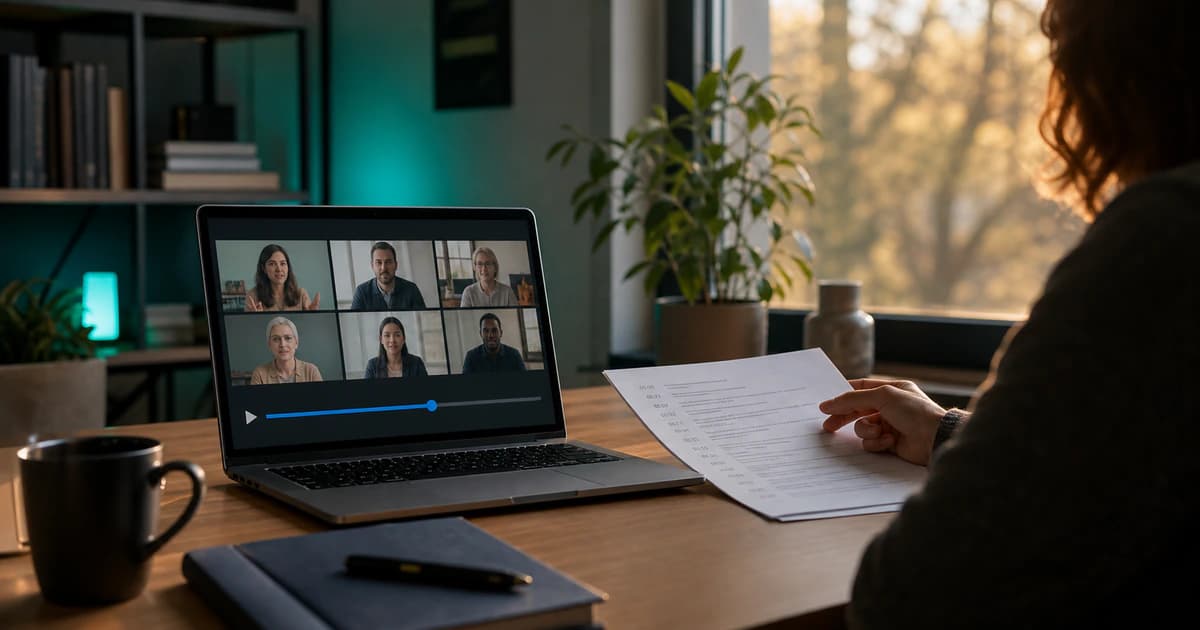
Zoom records hours of meetings, interviews and webinars — but a video file is hard to search, quote or share. A text transcript fixes that: you can skim it, copy exact quotes, and turn the discussion into notes. This guide walks through the fastest way to transcribe a Zoom recording, with no software to install.
Step 1 — Get your Zoom recording file
If you recorded to the cloud, open Zoom, go to your recordings, and download the MP4 video (or the M4A audio-only file). Local recordings are already saved on your computer, usually in a Zoom folder inside Documents. Either the video or the audio works — audio-only files are smaller and upload faster.
Step 2 — Upload it to a transcription tool
Open BriefVox, create a free account, and upload the file. You don't need to convert it first — MP4, M4A, MP3 and WAV are all accepted. It processes in the background and comes back as an editable, speaker-labeled transcript — with no typing on your part.
Step 3 — Let AI label the speakers
Speaker labels automatically separates who said what, so your transcript reads like a script: Speaker 1, Speaker 2, and so on. You can rename each speaker once and the label updates throughout the document.
Step 4 — Review and export
Open the editor to fix any names or technical terms, then export. Common choices:
- DOCX or TXT — for meeting minutes and sharing with colleagues
- SRT or VTT — if you want subtitles for the recording
- AI Notes — an automatic summary with action items and decisions
Tips for a more accurate transcript
- Use the original recording rather than a re-recorded or screen-captured copy — cleaner audio means fewer errors.
- Ask participants to avoid talking over each other; overlapping speech is the hardest case for any transcription engine.
- If your meeting mixed languages, transcribe the dominant language first, then translate the result.
Frequently asked
Can I transcribe a Zoom recording for free?
Yes — BriefVox includes free minutes when you sign up, with no credit card required, which is enough to transcribe a short meeting and see the quality before deciding.
Does Zoom transcribe automatically?
Zoom offers built-in transcripts on some paid plans, but they are often unlabeled and hard to edit or translate. Uploading the recording to a dedicated tool gives you speaker labels, an editor, summaries and multiple export formats.
Try BriefVox free
Start transcribing →