How to Edit Subtitles Online Before You Export
Edit subtitle text, timing, line breaks and placement online, then preview every change on your video and export a finished captioned MP4.
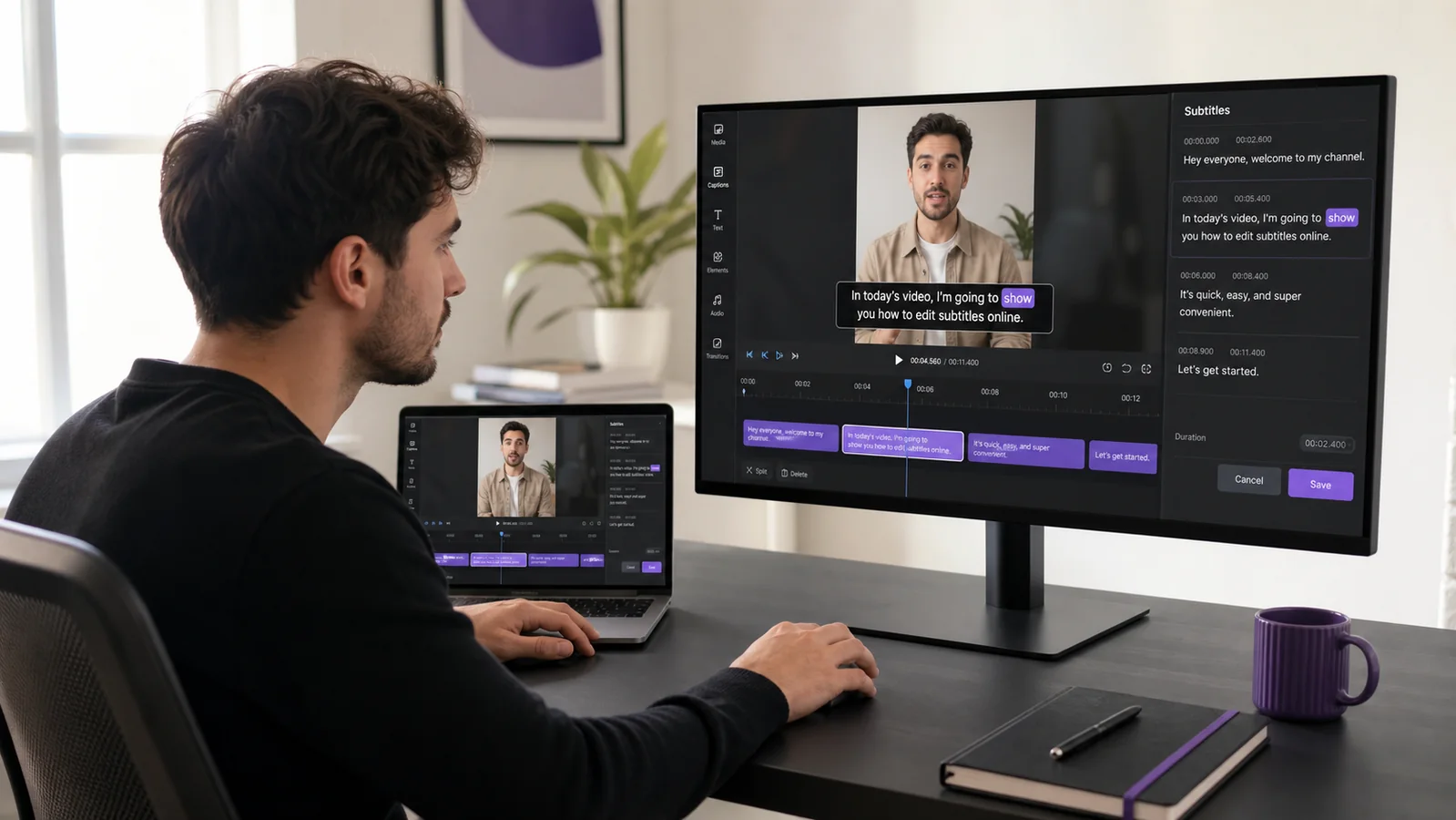
Automatic captions save most of the work, but the final review still matters. A name can be misheard, a line can break in the wrong place, or text can cover the most important part of the frame. A useful subtitle editor lets you fix all three while the video is still in front of you.
Start with the video, not a blank subtitle file
Upload your clip and let BriefVox create the first transcript with word-level timing. The editor opens on the source frame, so you can play the exact moment behind every caption instead of comparing a text file with a separate video player.
Correct a word without losing its timing
Open the Text tab, find the line and type the correction. BriefVox keeps the words attached to the same moment in the clip. This is especially useful for names, product terms, slang and short words that speech recognition can confuse.
Split, merge or remove a caption block
A caption should read as one natural thought. Split a line when it becomes crowded, merge two fragments when the cut feels abrupt, and remove a block that does not belong. The timeline lets you jump straight to each segment and check the change against the audio.
Move the captions away from faces and platform controls
Drag the caption directly on the video. You can move it horizontally and vertically, change its width and resize the type without guessing slider values. For vertical clips, turn on the safe-zone guide so text stays clear of the controls used by TikTok, Reels and Shorts.
Preview the actual animation
Play the clip before exporting. The live preview follows the word timestamps, active-word color, outline, background and animation you selected. Check the first word after every line change as well as the final word before the next caption begins.
Choose the delivery settings and export
Open the export window to choose the video format, resolution and frame rate available to your account. The finished captions are burned into the picture, so the style and placement stay intact when the file is uploaded to another platform.
Edit captions on your own video →Compare all 26 caption styles →Next: add word-by-word captions →Try BriefVox free
Start transcribing →