How to Convert a Zoom Transcript to Word (DOCX)
Turn a Zoom recording into a clean, editable Word (DOCX) file with speaker names and timestamps — far tidier than Zoom's raw .vtt. Step by step.
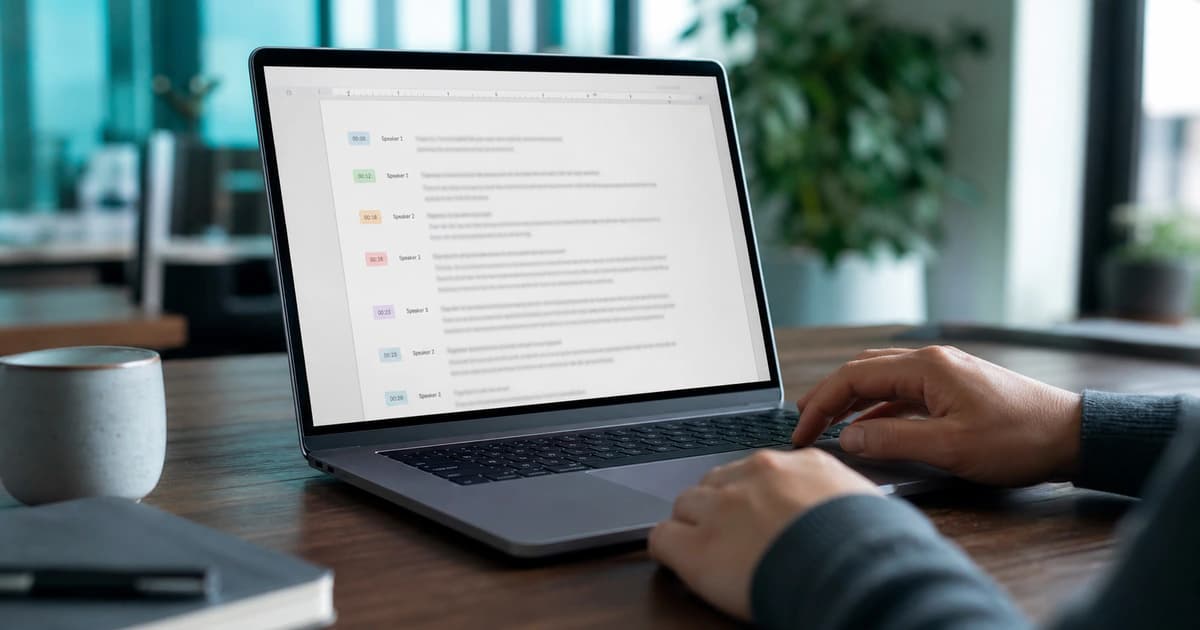
Zoom can hand you a transcript, but it arrives as a .vtt subtitle file: a timestamp on every line, no real paragraphs, and speaker tags that are awkward to read in Word. If you need a clean Word (DOCX) document — for minutes, a report, or sharing — here's the fastest way to get there.
Two ways to get a Word document
Option A is to reformat Zoom's .vtt by hand: strip the timestamps, merge lines into paragraphs and fix the speaker tags. It works, but it's tedious and error-prone for anything longer than a few minutes.
Option B is to transcribe the original recording and export DOCX directly. You get clean paragraphs, proper speaker names and an editable document in one step — and usually a more accurate transcript than Zoom's built-in one.
Step 1 — Get your Zoom recording
In Zoom, download the meeting recording as MP4 (video) or M4A (audio-only). Either works — only the audio track is needed for transcription.
Step 2 — Upload it to BriefVox
Upload the MP4 or M4A. There's nothing to install; the file processes in the background and you get back a speaker-labeled, timestamped transcript you can edit in the browser.
Step 3 — Name the speakers and tidy up
Speaker detection separates who said what. Rename the speakers once to the participants' names and the labels update across the whole transcript. Click any line to jump to that moment in the audio and fix wording fast.
Step 4 — Export to Word (DOCX)
Export the finished transcript as DOCX — a formatted document with speaker names, ready to share or turn into minutes. From the same transcript you can also export SRT or VTT if you need subtitles for a recap video.
If you already have Zoom's VTT transcript
A VTT file is readable text with caption timecodes. You can open it in a text editor and paste it into Word, but every cue still needs cleaning: remove timecodes, join broken lines, rebuild paragraphs and standardize speaker names. That route is reasonable for a very short meeting. For a longer call, using the original MP4 or M4A gives you a clean transcript and a DOCX export without hand-formatting every caption cue.
A practical Word transcript checklist
- Use participant names instead of generic speaker numbers.
- Verify names, figures and decisions against the synced recording.
- Keep timestamps for research or legal review; remove them for a cleaner reading copy.
- Add a short summary and action list above the full transcript when the document is for a team.
Frequently asked
Can Zoom export a transcript straight to Word?
No. Zoom gives you a .vtt (or plain .txt) transcript, not a Word file. To get a clean DOCX you either reformat the .vtt manually or transcribe the recording and export DOCX.
Do I keep timestamps in the Word document?
It's your choice. Export settings let you include or hide timestamps and speaker labels, so the DOCX matches how you'll use it — minutes, a quote sheet or a clean read.
Is transcribing the recording more accurate than Zoom's transcript?
Often yes — especially with accents, crosstalk or background noise — and you can correct anything in the editor before exporting.
Try BriefVox free
Start transcribing →