How to Transcribe WhatsApp Voice Messages
Convert WhatsApp voice notes into text you can read, search and save. Export the audio from the chat, upload it, and get an accurate transcript — step by step.
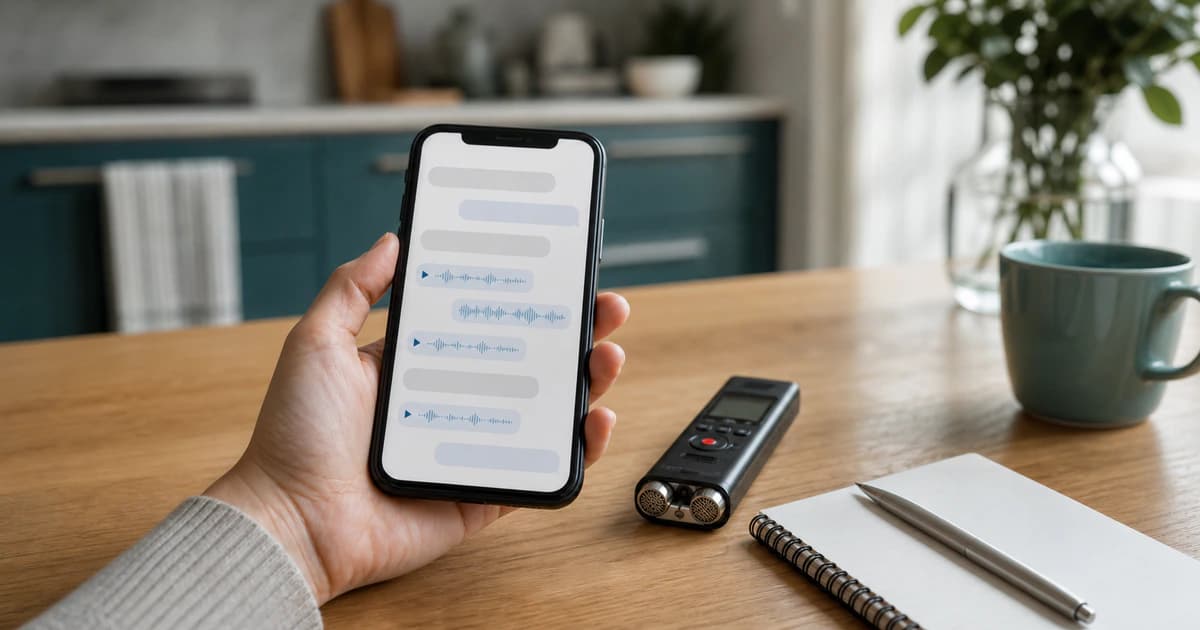
A three-minute voice note is quick to send and slow to receive — especially when you need one detail from the middle of it, or a written record of what was agreed. Here's how to turn WhatsApp voice messages into text you can read, search and keep.
Step 1 — Export the voice message from WhatsApp
In the chat, long-press the voice message (or open the ⋮ / share menu on desktop) and choose Share or Forward → save it to Files, Drive or email it to yourself. WhatsApp voice notes are OPUS/OGG or M4A audio files — both upload directly, no conversion needed.
Step 2 — Upload it to BriefVox
Upload the file in your browser. Short notes transcribe in moments; long rambling ones are exactly where a transcript pays off. Automatic language detection handles messages in any of the supported languages.
Step 3 — Read, save or summarize
Read the message as text, search it for the detail you need, export a TXT/DOCX record, or let AI Notes summarize a long update into a few bullet points. If the note is a back-and-forth recording of a call, speakers are separated where the audio allows.
A note on privacy and consent
Only transcribe messages you have the right to process — a voice note someone sent you privately is their words. BriefVox stores source media in private storage and automatically removes it after 24 hours, while keeping your transcript until you delete it or close your account.
Batch tip for long conversations
Exporting a chat with media from WhatsApp gives you all the voice notes as separate files. Upload the ones that matter — each becomes its own searchable transcript, far easier to reference than scrubbing through audio bubbles.
WhatsApp voice note formats explained
WhatsApp commonly stores voice notes as Opus audio inside an OGG container. The filename can look unfamiliar, but it is still a normal audio file and uploads directly. Audio shared as a regular attachment may instead be MP3, M4A or another common format.
Transcribe a WhatsApp voice note →Frequently asked
Can I transcribe a WhatsApp voice message on iPhone?
Yes. Use Share in WhatsApp, save the voice note to Files and upload it from Safari. You do not need to play the note aloud or record it again.
Can I convert several WhatsApp voice notes at once?
Each uploaded note becomes a separate transcript, which keeps its source and timing clear. For a long chat, export the media first and upload only the notes you need.
Try BriefVox free
Start transcribing →