How to Add Subtitles to a Video (Automatically)
Add subtitles to video without typing them by hand. Generate timed captions automatically, edit them, and export SRT or VTT.
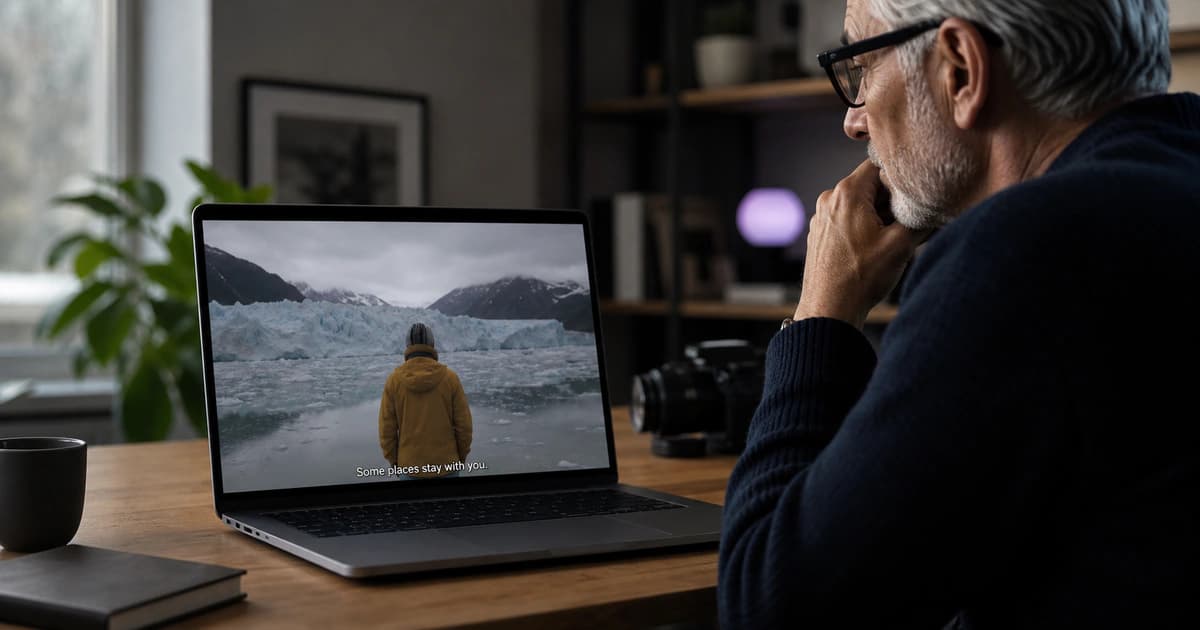
Most people watch video with the sound off, so subtitles aren't optional anymore — they're how your message lands. The good news: you don't have to type captions line by line. Here's how to subtitle a video automatically and keep full control over the wording.
Why subtitles matter
- Watch-time goes up because viewers can follow without audio.
- Your content becomes accessible to deaf and hard-of-hearing viewers.
- Search engines and social platforms can read the text, helping reach.
Step 1 — Transcribe the video
Upload your video to BriefVox. It transcribes the speech with precise timecodes — the timing is what turns a plain transcript into subtitles that appear at the right moment.
Step 2 — Review the text
Open the editor and fix names, technical terms, or punctuation. Because the timecodes are linked to the text, small edits won't break the timing.
Step 3 — Export SRT or VTT
Export an SRT file for YouTube, Vimeo, or a video editor like Premiere Pro or DaVinci Resolve. Choose VTT if the video will play inside a web page using HTML5. Upload the file alongside your video and the captions are ready.
Open captions vs. closed captions
A subtitle file (SRT/VTT) gives viewers a toggle to turn captions on or off — that's closed captions. If you want captions burned permanently into the picture (open captions), use the exported text in your video editor to render them onto the frames.
Frequently asked
Can I add subtitles in another language?
Yes. Transcribe in the original language, translate the transcript, then export the translated version as SRT or VTT to ship multilingual captions.
What's the difference between subtitles and captions?
In everyday use they overlap. Strictly, captions also describe relevant sounds for accessibility, while subtitles focus on the spoken dialogue. Both come from the same timed transcript.
Try BriefVox free
Start transcribing →