How to Transcribe a YouTube Video (Step by Step)
Turn any YouTube video into clean, editable text. Get an accurate transcript with speaker labels and timestamps — for notes, articles or subtitles.
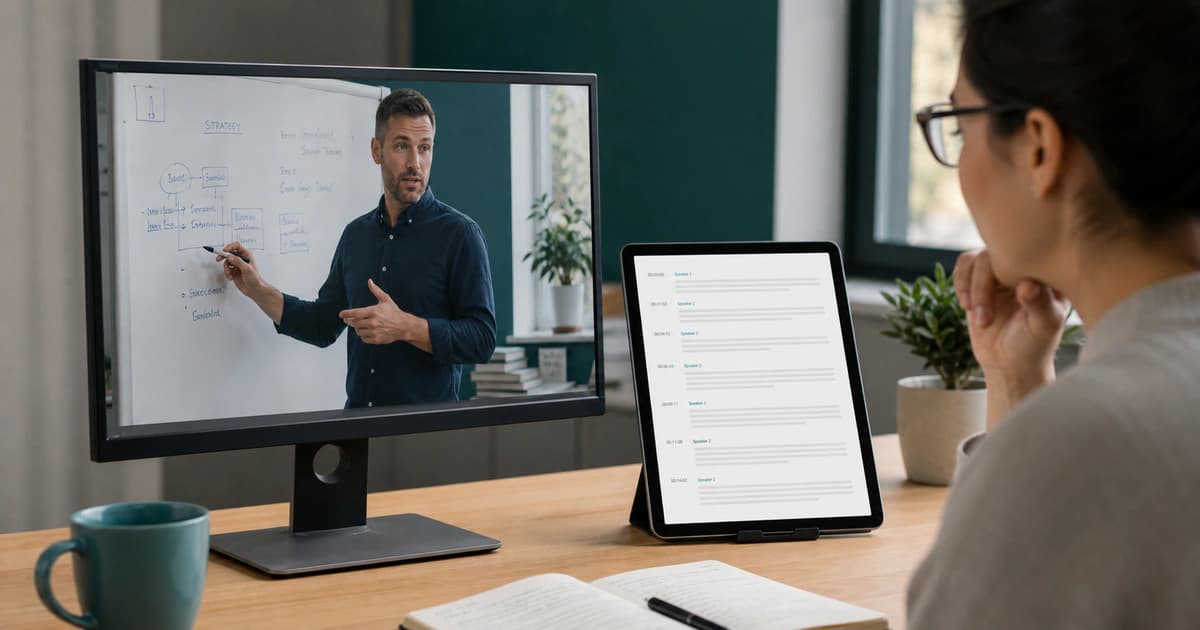
YouTube's auto-captions are rough: no speaker labels, shaky punctuation, and hard to edit. If you want a transcript you can actually use — for an article, study notes, or proper subtitles — here's a cleaner way to do it.
Step 1 — Get the video or audio file
If it's your own video, download it from YouTube Studio. For videos you don't own, make sure you have the right to use the content, then transcribe from your own copy of the file.
Step 2 — Upload to a transcription tool
Open BriefVox and upload the MP4 or an audio-only file. You'll get a clean transcript with timestamps automatically — far less hassle than scrubbing through the video to copy auto-captions.
Step 3 — Add speaker labels and edit
If the video has more than one voice, speaker separation separates them. Open the editor to correct names and terminology so the text reads cleanly.
Step 4 — Export for your use case
- DOCX or TXT — for blog posts, scripts, or study notes
- SRT or VTT — to publish better subtitles than the auto ones
- AI Notes — a quick summary with the key points and takeaways
Frequently asked
Why not just use YouTube's automatic captions?
They're a starting point, but they lack speaker labels, miss punctuation, and are awkward to export and edit. A dedicated transcript is cleaner and gives you DOCX, SRT and summary options.
Can I transcribe a long YouTube video?
Yes. Processing scales with length — roughly the duration of the video — and runs in the background, so even a long talk or podcast episode is handled automatically without any manual work.
Try BriefVox free
Start transcribing →