How to Convert MP3 to Text (Free and Accurate)
Convert any MP3 audio file to text without typing. Upload, let AI transcribe with speaker labels and timestamps, then export to DOCX, TXT or subtitles.
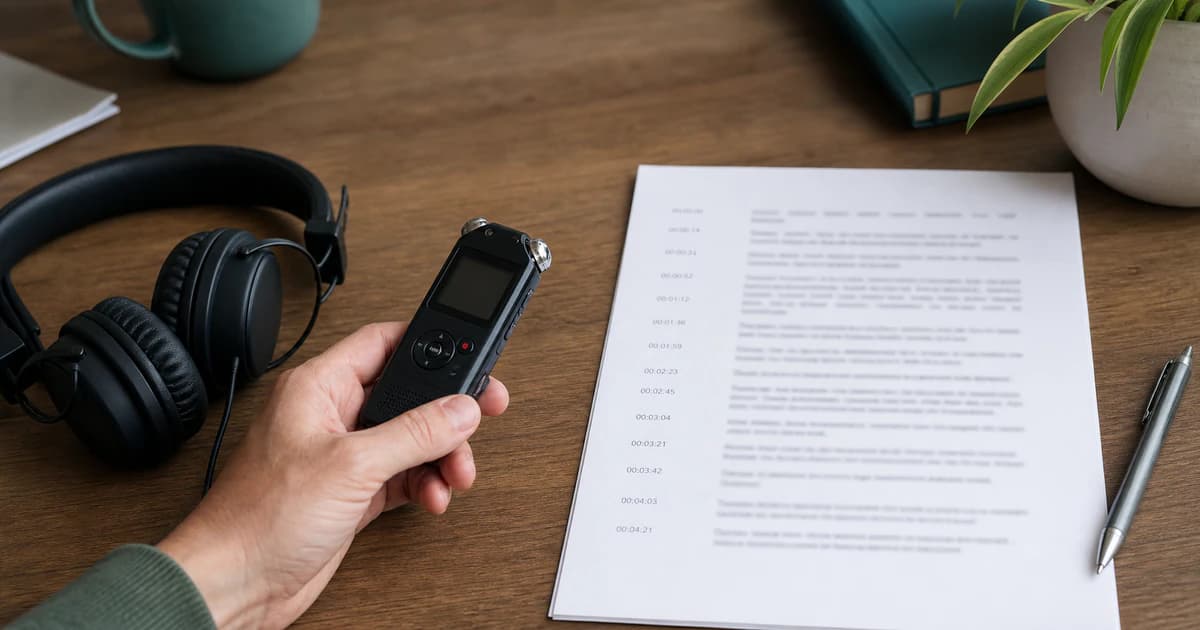
An MP3 is easy to record but hard to use — you can't search it, quote it or skim it. Converting it to text fixes all three. Here's the fastest way to turn an MP3 into a clean, editable transcript without typing a word.
Step 1 — Upload the MP3
Open BriefVox, create a free account, and upload your MP3. No conversion needed — WAV, M4A and MP4 also work if your file isn't an MP3.
Step 2 — Let AI transcribe it
The audio is transcribed automatically with timestamps. If there are multiple voices, speaker labels separate them so the text is easy to follow.
Step 3 — Review and export
Open the editor to correct names or terminology, then export in the format you need:
- TXT — a clean plain-text copy
- DOCX — formatted for documents and sharing
- SRT or VTT — timed subtitles if the audio belongs to a video
Tips for the best accuracy
- Use the clearest recording you have; background noise lowers accuracy.
- If several people speak, ask them not to talk over each other.
- For another language, transcribe first, then translate the text.
Frequently asked
Can I convert an MP3 to text for free?
Yes — BriefVox includes free minutes on sign-up with no card required, enough to convert a short MP3 and check the quality first.
Is there a file length limit?
You can transcribe long files. Processing scales with length — roughly the duration of the recording, a little faster in Fast mode — and runs in the background, so you're free to do other things while it works.
Convert your MP3 to text now →See transcription plans and free minutes →Try BriefVox free
Start transcribing →