How to Add Captions to Gaming Videos and Clips
Add readable animated captions to gameplay, face-cam reactions and gaming clips without covering the HUD. A practical workflow for YouTube, Shorts and TikTok.
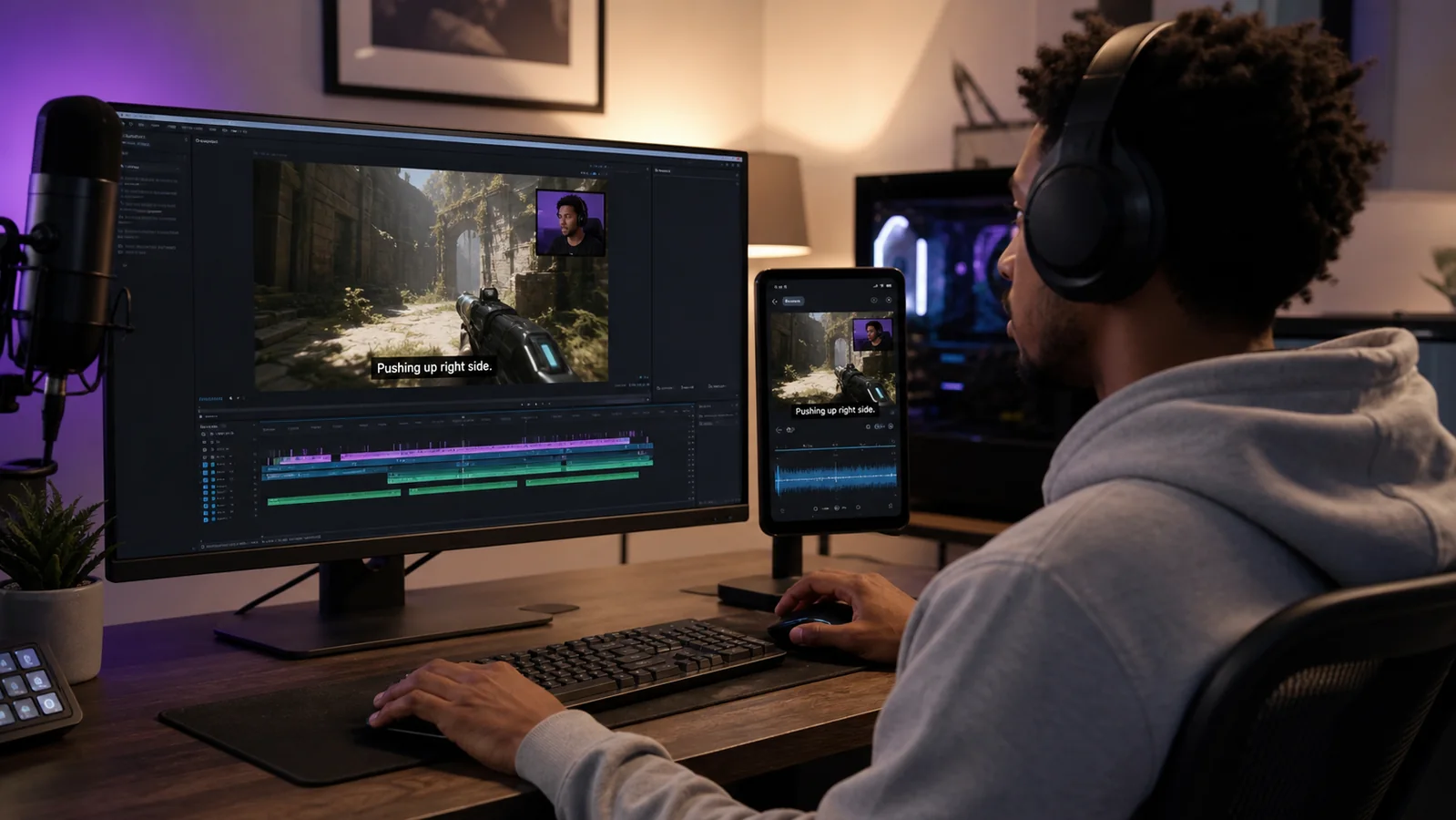
Gaming captions have a harder job than captions on a simple talking-head clip. They must stay readable over a moving scene, leave the HUD visible, make commentary easy to follow and still work when the same moment is cropped for a vertical short. The best result starts with the format and the frame, not just a loud font.
Choose the version you are actually publishing
Use the original 16:9 recording for a full YouTube video. For TikTok, Reels or Shorts, prepare the vertical version first so you can position the face-cam, action and captions together. BriefVox detects a horizontal source automatically, and you can switch the editor between landscape and vertical caption looks.
Transcribe the commentary, not the game audio
Clear commentary produces cleaner captions. Keep the microphone louder than music and effects when you record. After transcription, scan player names, map names and game-specific terms in the Text tab and correct anything the first pass misheard.
Keep the HUD and face-cam clear
Drag captions into a quiet part of the frame. Avoid health bars, inventory, minimaps, scoreboards and the face-cam. A short line width works well for vertical clips; a wider line can feel calmer in a landscape tutorial or review.
Use motion to support the reaction
Word highlights, a restrained pop or a color fill can carry excited commentary without competing with gameplay. For explanations and walkthroughs, a clean line or active-word underline is easier to follow. Hover over each animation in the editor to preview the motion before applying it.
Check three moments before rendering
- The first spoken word after a cut, so the highlight starts immediately.
- The busiest gameplay moment, so captions never hide the action or HUD.
- The handoff between two caption lines, so no word disappears or lights up late.
Export once the clip reads without sound
Watch the final preview muted. If the joke, callout or explanation still makes sense and the caption remains clear over the brightest frame, it is ready to render. Export the finished MP4 and upload the same burned-in result wherever the clip is published.
Caption a gaming clip with BriefVox →Find a caption style for gameplay →How to add captions to YouTube Shorts →Try BriefVox free
Start transcribing →