How to Add Captions to a TikTok Video
Add accurate, animated captions to a TikTok video in minutes. Auto-transcribe your clip, pick a style, and export a ready-to-post MP4 with burned-in subtitles.
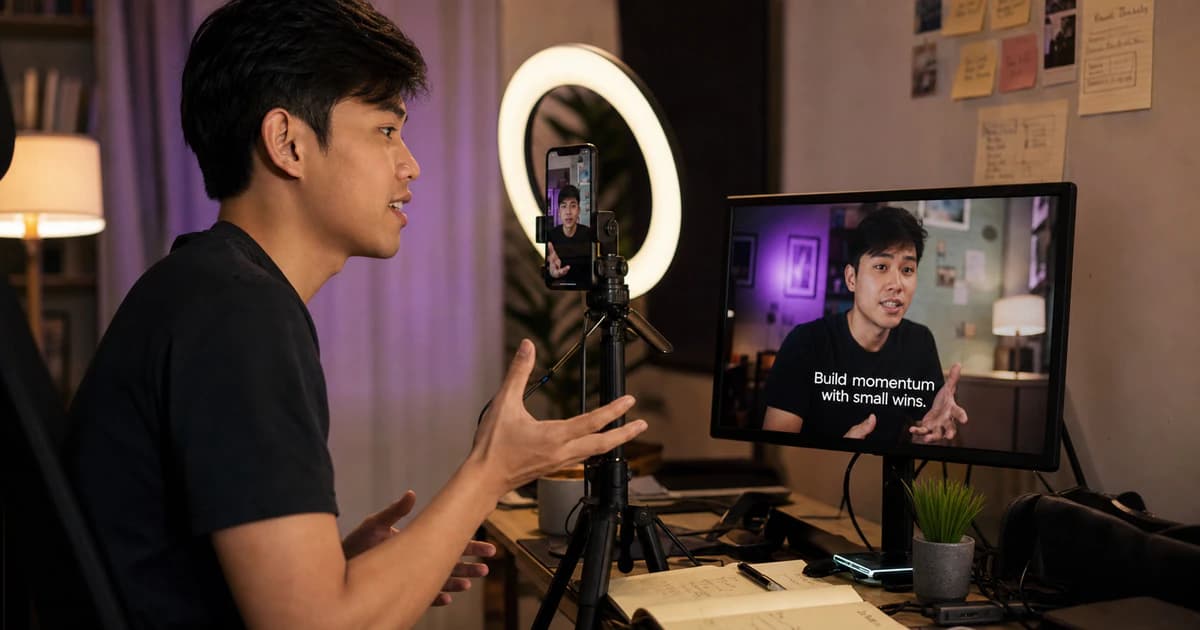
Captions are no longer optional on TikTok. Most people watch with the sound off at least part of the time, and clips with clear on-screen text hold attention longer and are far more accessible. The problem is that typing and timing subtitles by hand is slow. Here is how to add accurate, animated captions to a TikTok video automatically and export a finished MP4 you can post straight away.
Step 1 — Upload your video
Export your clip from your editor (or straight from your phone) and upload the MP4. There is nothing to install — everything runs in the browser. Vertical 9:16 clips are detected automatically, so the caption editor sets itself up for TikTok's format without you touching anything.
Step 2 — Let AI transcribe the speech
The audio is transcribed word by word with timings, so each word appears exactly when it is spoken. This word-level timing is what makes captions feel snappy instead of dumping a whole sentence on screen at once.
Step 3 — Pick a caption style
Choose from ready-made presets built for short-form video: bold word-by-word highlights, karaoke-style fills, clean single-line looks and more. You can adjust the font, size, outline, shadow and colors, and drag the captions to sit exactly where you want them in the frame — above the UI, centered, or low.
Step 4 — Export a ready-to-post MP4
Render the video with the captions burned in. The subtitles are baked into the picture, so they show up on TikTok, Reels and Shorts no matter how the file is re-encoded — no separate subtitle file to upload.
Frequently asked
Do burned-in captions work better than TikTok's own auto-captions?
TikTok's built-in captions are convenient but limited in styling and often need manual correction. Burning styled captions into the video gives you full control over look, timing and placement, and the result is identical on every platform you repost to.
Can I edit the words before exporting?
Yes. You can fix any wording, names or punctuation in the editor before rendering, so the final captions match your speech exactly.
Add captions to your TikTok video →Also read: how to add word-by-word captions →Try BriefVox free
Start transcribing →