How to Add Captions to YouTube Shorts
Add accurate, eye-catching captions to a YouTube Short in minutes. Auto-transcribe your clip, style word-by-word captions, and export a burned-in MP4.
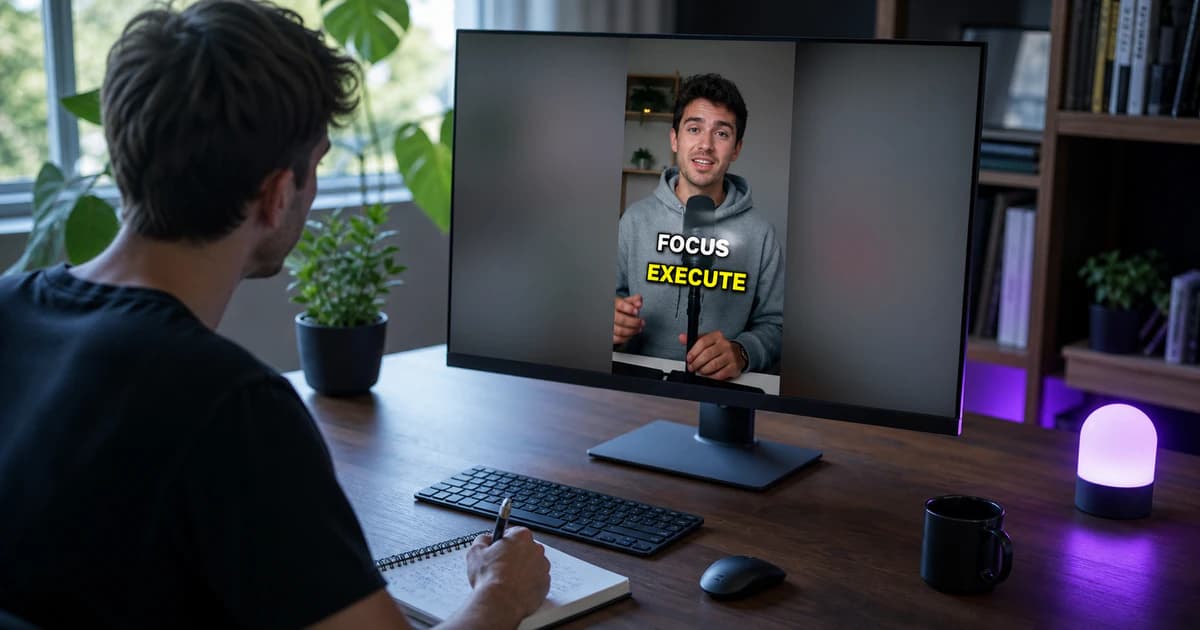
YouTube Shorts live or die on the first couple of seconds, and bold, well-timed captions are one of the most reliable ways to hold attention. Here is how to add accurate, animated captions to a Short automatically and export a ready-to-upload MP4.
Step 1 — Upload your Short
Upload the vertical MP4. The 9:16 format is detected automatically, so the editor is already set up for Shorts when it opens.
Step 2 — Transcribe the audio
The clip is transcribed word by word with precise timings. Word-level timing is what lets captions pop one word at a time in sync with your delivery.
Step 3 — Choose a punchy style
Pick a preset designed for retention — big bold text with per-word highlights works well for Shorts. Adjust the font, colors, outline and glow, and position the captions in the upper-middle of the frame where they are easy to read and clear of the YouTube UI.
Step 4 — Export and upload
Render the MP4 with captions burned in and upload it as a Short. The captions are part of the video, so they display consistently and you can repost the exact same file to TikTok and Reels.
Frequently asked
Do I still need YouTube's auto-captions?
YouTube's auto-captions (the CC track) are useful for accessibility and search, and they can coexist with burned-in captions. The burned-in text is what viewers actually see and what makes the Short visually engaging.
What length works best?
Shorts can run up to 60 seconds. Whatever the length, keep captions concise — one short line at a time reads best on a small screen.
Add captions to your Short with BriefVox →Also read: how to put captions on any video →Try BriefVox free
Start transcribing →