How to Get the Most Accurate Transcription
Practical tips for cleaner, more accurate transcripts: pick the right language, cut background noise, and fix the rest in seconds. For meetings and podcasts.
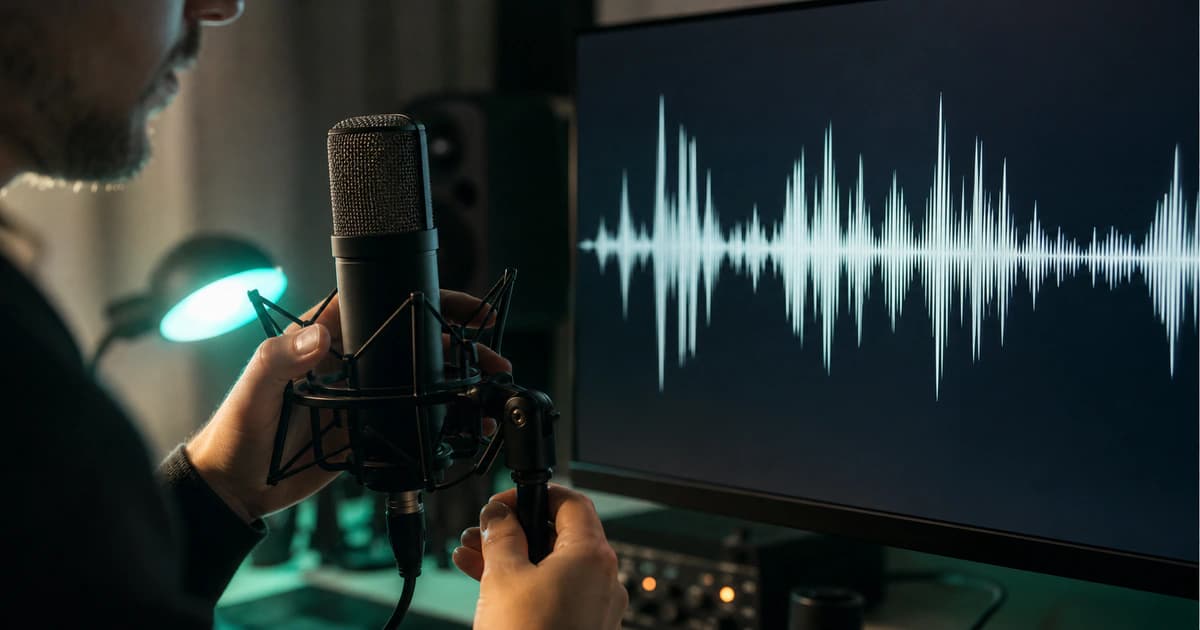
Modern speech-to-text is remarkably good, but the quality of the transcript still depends a lot on what you feed it. The good news: a few simple habits get you most of the way to a near-perfect result. Here is what actually moves the needle.
1. Start with the cleanest audio you can
Accuracy follows the recording. Speech that is clear and reasonably loud transcribes far better than a faint voice buried under traffic or a humming fan. When you record, put the microphone close to the speaker, avoid talking over each other, and pick a quiet room when you can. You do not need studio gear — a phone held near the speaker beats a laptop mic across the table.
2. Let the automatic audio cleanup help
When you start a transcription, BriefVox can clean the audio first. Auto mode is on by default: it measures your file and applies only what helps — it evens out the loudness of quiet or uneven recordings, and reduces steady background noise (hiss, hum, a fan) when it detects it. On already-clean, well-balanced audio it does nothing, so it never over-processes.
If you know your file, you can turn auto off and choose manually: enable noise reduction for a clearly noisy recording, or leave it off for clean speech where it could slightly soften the voice. For most people, leaving it on Auto is the right call.
3. Set the language instead of leaving it to guess
Auto-detect is convenient, but if you already know the language, select it. It removes any chance of the model guessing wrong on the first few seconds — which matters most for short clips, heavy accents, or recordings that start with music or silence.
4. Tell it how many speakers
If your recording has a known number of participants, set the speaker count. Cleaner speaker separation means fewer mislabeled lines and a transcript that is much easier to read and turn into minutes.
5. Fix the last 2% in the editor
No transcript is perfect on the first pass — names, jargon and acronyms are the usual suspects. Click any line to jump straight to that moment in the audio, correct the wording, and rename speakers once so the label updates everywhere. Two minutes of editing turns a great transcript into a flawless one.
6. Then export the way you need it
Once it reads well, export to DOCX for a document, SRT or VTT for subtitles, or generate AI Notes for a summary. Cleaner input here means cleaner output everywhere downstream.
Frequently asked
Why is part of my transcript wrong?
Almost always it traces back to the audio: low volume, crosstalk, or background noise during that section. Re-running with auto cleanup on, setting the correct language, and a quick edit usually clears it up.
Does noise reduction always help?
No — that is why Auto mode only applies it when it detects real noise. On clean speech, aggressive denoising can soften the voice and slightly hurt accuracy, so it is best left to the automatic decision unless you can clearly hear noise.
Is a higher-quality recording really worth it?
Yes, more than any single setting. Clear, close-mic audio with little background noise is the biggest factor in a great transcript — everything else is fine-tuning on top of it.
Try BriefVox free
Start transcribing →